How to make an AI rap video from two photos
Prepare your portraits, check the positions and understand the cost before you create a Hotel Lobby video.
Last updated:
Open the photo creator ↗Video creation is limited to approved accounts during rollout. New requests are accepted only when the creator shows access for your account. You can watch the example without creating a new video.
Online checkout is being finalized. You can review credit packs, but purchases cannot be completed yet.
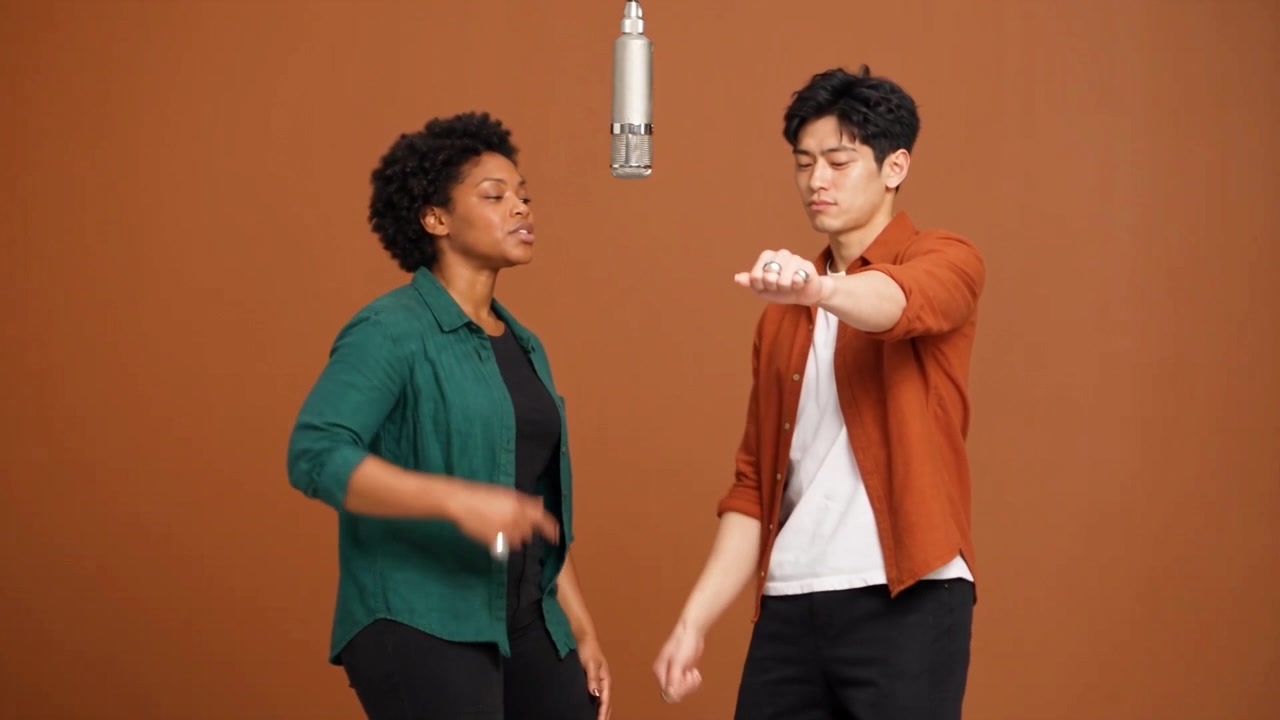
This guide covers the two-person photo template shown on our homepage. The scene uses an orange studio and a shared hanging microphone, with one continuous performance. Read the steps below to choose suitable images and understand what the creator can deliver. The live example is available on the homepage without starting a generation.
How to choose two suitable portraits
Open the photo creator on the homepage and prepare one image per person. The current Hotel Lobby scene requires two separate uploads; it is not a single-person performance and does not split a group photo for you. Only use adults who have agreed to this particular creative use. Permission to take or possess a photo is not necessarily permission to generate a synthetic performance from it.
Choose a clear, front-facing portrait with even lighting. Avoid strong backlighting, heavy face coverings, blur or a face occupying only a tiny part of the image. JPG, PNG and WebP are supported, with a maximum of 10 MB for each file. Check the image itself for private information in the background before uploading it.
How to place each person on the correct side
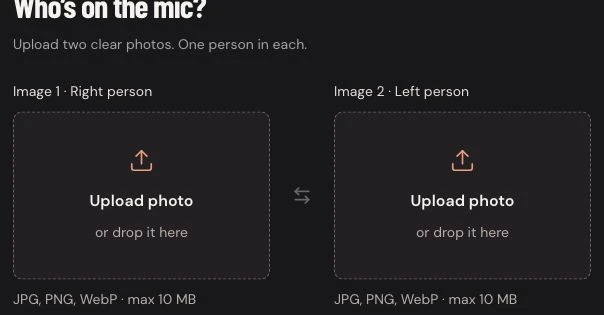
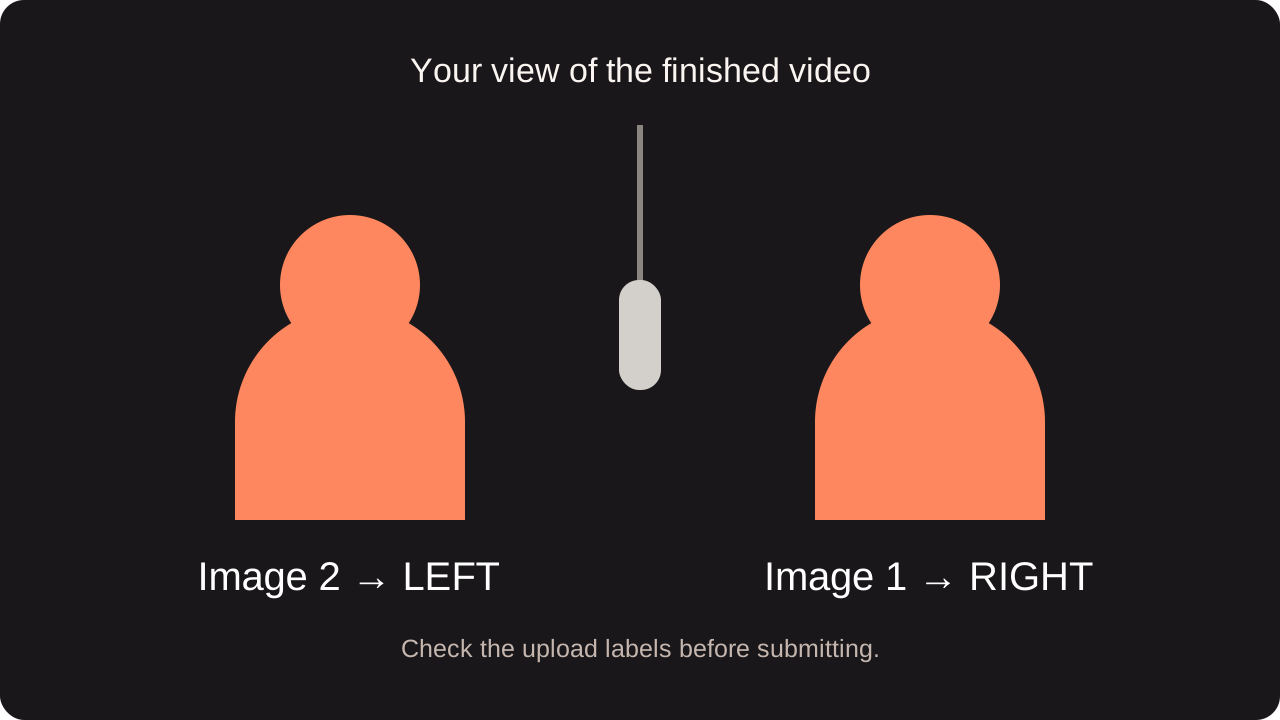
The first upload, labelled Image 1, becomes the person on the right. The second upload, labelled Image 2, becomes the person on the left. These positions refer to how you view the finished video. Use the thumbnail previews to confirm that each file contains the intended person. The swap button exchanges the two positions before submission.
This check is useful when you want a specific person on a particular side of the microphone. It does not choose which person sings a particular line or guarantee the exact timing of either person’s mouth movement. The output remains an AI interpretation of the fixed performance. Review both faces and their placement in the finished result.
How to choose quality and review credits
Choose 480p for 50 credits or 720p for 100 credits. The duration remains 15 seconds and the frame remains landscape 16:9 at either quality. The cost is displayed beside your account balance before you confirm. A larger credit pack changes how many credits you own; it does not automatically change the quality of an individual video.
Watch the example and read this guide before choosing your settings. When access is available, sign in, ensure you have enough credits and confirm that you have permission from both adults. The site does not need a prompt, a song upload or a wardrobe description for this template.
How to submit once and recover a saved task
Both images must be present before the Generate control can be used. After submission, keep track of the existing task rather than creating several requests because one seems slow. The result panel shows progress, and My creations provides a private place to return to it. The page does not need to stay open for the task to continue.
A task reserves the displayed credits. Successful delivery consumes that reservation; a confirmed technical failure returns it. If submission or delivery is uncertain, the service reconciles the original request before deciding what happened. Refreshing the status is different from requesting a new generation. Contact support with the task reference if you cannot determine the outcome.
How to review and download your finished video
When the task is ready, play the entire clip and check the two performers, gestures, faces and audio. The downloadable result is a 15-second landscape MP4. AI can alter facial details, hands and accessories, and exact lip synchronization is not guaranteed. The homepage example gives you a concrete reference for the scene, but it is not a commitment to reproduce every detail for a different pair of photos.
Download your copy within seven days of completion. Keep it in your own storage before the library link expires. A new variation or another pair of photos is a separate generation with its own cost. Before publishing, check the rights to your input material and output, avoid implying a real endorsement, and disclose the AI origin where required.
How to check whether the photo workflow fits your project
The current website focuses on turning two portraits into the Hotel Lobby performance. It does not accept your MP3 or WAV as the soundtrack for that scene, synchronize a complete song or generate a full-length music video. Do not purchase credits expecting an audio-upload feature that the creator does not show.
If you already have a recorded track, assess whether the fixed 15-second photo performance matches your needs before proceeding. You may need a separate editing workflow or music-video tool for your own recording. On this site, the homepage is the working entry point for the photo creator, while this page explains the decisions and limitations before you submit.
How to check the output specifications
| Photos | Two separate adult portraits |
|---|---|
| Duration | 15 seconds |
| Frame | 16:9 landscape |
| File | MP4 with audio |
| 480p | 50 credits per video |
| 720p | 100 credits per video |
| Download window | Seven days after completion |
Compare credit packs and payment availability before deciding on an export quality. Read the Refund Policy for the difference between returned task credits and a payment refund.
What do I need to upload?+
Use two separate photos for the Hotel Lobby performance. Each image should show one adult, with even light and a clear view of their face. You must have permission from both people. A group photo is not a substitute for two individual portraits.
Can I make a rap duo video with my own photos?+
Yes. Upload the first person in Image 1, which places them on the right, and the second person in Image 2, which places them on the left. You may use your own portrait and a friend’s portrait when both adults agree to this use.
How long is the finished video?+
The Hotel Lobby template produces a 15-second performance in landscape 16:9. The current creator does not offer a full-song export or an adjustable duration. The example is a short performance, so choose this format for a brief clip rather than a complete music video.
Can I upload a child’s photo or someone else’s face?+
The service is for adult users and adult subjects only. Do not upload children’s photographs. Another adult’s permission is required even if you own the image file. Deceptive impersonation, unauthorized likeness or voice use and harmful deepfakes are prohibited by the Acceptable Use Policy.
Which person goes on the left and right?+
Image 1 belongs to the person on the right of the finished scene. Image 2 belongs to the person on the left. The upload labels show this mapping. Use the swap control before submitting if the two portraits are in the wrong positions.
Do I need to write a prompt or upload a song?+
No. The photo workflow uses the Hotel Lobby scene and its fixed performance direction. You upload two portraits and choose an available quality. This guide does not describe an MP3-to-video service, and the current photo creator has no user-supplied audio option.
Can I change clothing or hairstyle with text?+
There are no clothing or hairstyle text fields in this creator. Use photos that show the appearance you want to reference. AI output can still alter small details, so the reference is not a guarantee of an exact outfit, hairstyle or identity match.
What should I do if I close the page?+
Sign in again if necessary and open My creations to find the saved task. Processing can continue after the page closes. Check that task before starting another video. If the status is unclear, keep its task reference and contact support rather than repeatedly submitting the same pair.
Does another attempt cost credits?+
A new generation or variation has its own displayed credit cost. There is no unlimited retry allowance. Confirmed technical failures return reserved credits, but disliking a completed creative result does not automatically make it a failed task. Refer to the Terms and Refund Policy for the distinction.
Ready to review the scene? Watch the Hotel Lobby example. Questions about permission? Read our content rules or report unauthorized use or contact support.